
|
View filters |
|
|
View filters |
For complex or large models, 3D views can be excessively cluttered. OrcaFlex offers facilities to allow control over which aspects of the model are drawn:
| Note: | Because view filters are an advanced feature with significant complexity, we recommend that you read through the view filter examples. |
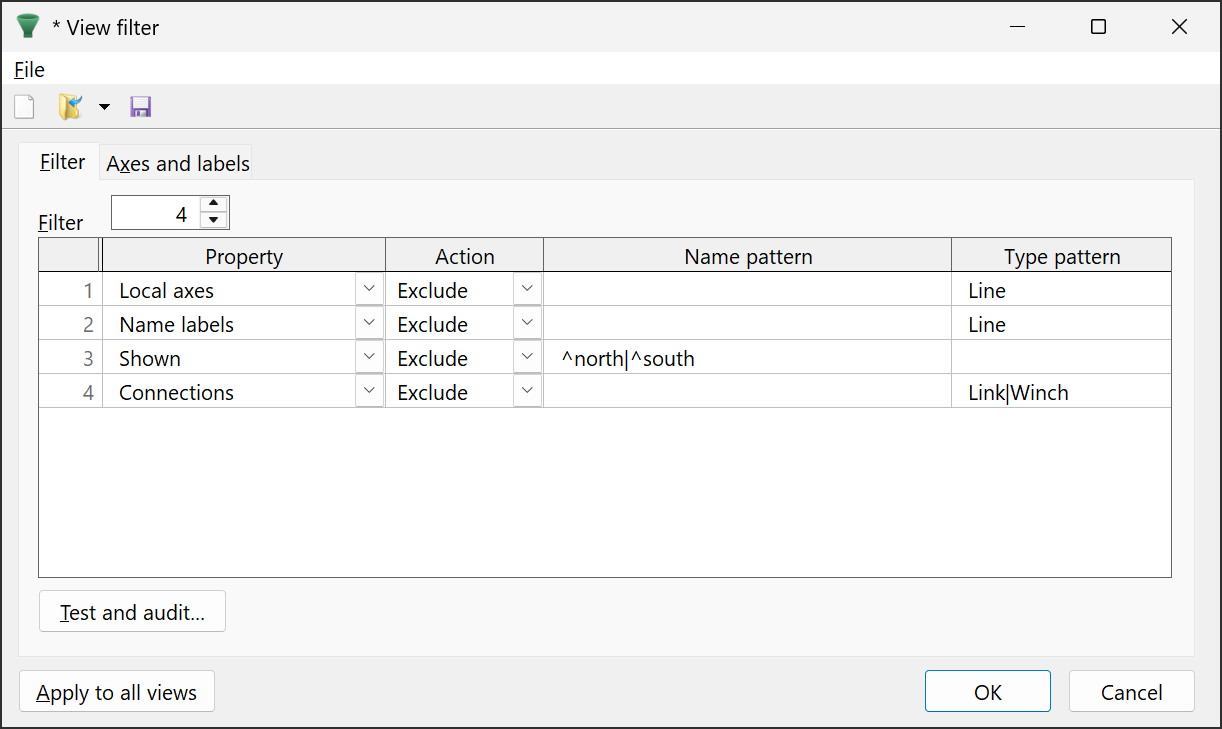
| Figure: | View filter data |
The view filter data for a specific 3D view window is opened using the view filter button  on the view window's toolbar, or via Menu | Edit view filter.
View filter data is associated with, and owned by, the view window to which it is applied. Each view window has its own filter, and therefore each view window can use a different filter. However, if you wish to apply a filter to all view windows, you can use the apply to all views button.
You can save view filters using the file menu or save button on the toolbar. View filter files can be opened in a similar way. View filter files are YAML format text files that by default use a .vflt file extension. Any view filter data, for each view window, is included in workspace files when they are saved.
The data are defined by a number of filter items. Each item specifies the property which is to be filtered, the action to perform (exclude or include) and the regular expression patterns that are matched against object names and object types.
The property specifies which aspect of drawing is to be filtered. This can be one of the following values:
| Property name | Effect |
|---|---|
| Shown | Whether the entire object is drawn |
| View axes | Whether view axes are drawn. These show the same directions as the global axes, but are drawn in the top right-hand corner of 3D views. |
| Scale bar | Whether the scale bar is drawn. |
| Global axes | Whether the global axes are drawn, at the model's global origin (0,0,0). |
| Environment axes | Whether the wave, current and wind directions are drawn. |
| Local axes | Whether local axes for vessels, buoys, wings, Morison elements, line supports, line connections, turbines, shapes and wind are shown. |
| Node axes | Whether axes for individual line nodes and turbine blade nodes are shown. |
| Support cylinder axes | Whether axes for individual cylinders within line supports are shown. |
| Origins | Whether indicator marks are drawn at the origins of vessels and 6D buoys. |
| Name labels | Whether text labels are drawn to identify each object in the model. |
| Connections | Whether symbols are drawn to represent connections. |
| Out of balance forces | Whether, during static analysis, lines representing the out-of-balance force acting on vessels and buoys are drawn. |
| Compass | Whether the compass is drawn. |
| Note: | The compass can only be drawn if the north direction is defined, and is only drawn in plan view. |
Either include or exclude. This determines how the filter acts when the patterns match. For example, consider the shown property. If the patterns match, and the action is include, then the object will be drawn. If the action is exclude, then the object will not be drawn.
These are regular expression patterns that are matched with object name and object type, respectively. If both patterns match then the action will be applied.
Pattern matching ignores letter case, and an empty pattern matches any text.
OrcaFlex uses the PCRE flavour of regular expression. The PCRE version used by OrcaFlex is displayed in the about window.
Most properties apply to individual objects and so the pattern matching is against the object's unique name, and its type. However, some properties apply model wide and so the name and type do not need to be used to filter. For such properties a value of global is used for both name and type, although you never need to filter for this value. Model wide properties should always be used with empty name and type patterns. The model wide properties are: view axes, scale bar, global axes, environment axes and compass.
The filter items are processed sequentially to update the drawing state (a boolean true or false) for each specific property of each object which potentially can draw this property. The final value of this drawing state determines whether or not the property is drawn.
A boolean state flag is set to its default value, as follows:
| Property name | Default |
|---|---|
| Shown | Determined by object data (hidden) |
| Compass | Determined by object data (north direction) |
| All other properties | GUI: determined by view preferences API: determined by view parameters (TViewParameters) |
For items specifying the property, two regular expression matches are performed:
The item is considered a match only if both regex tests succeed.
| Note: | As well as the named objects in your model, some additional parts of the drawing are named, e.g. sea, seabed, etc. The full list of such names can be discovered by using the populate text with object names button on the pattern matching page of the test and audit form, as introduced below. Similarly, the full list of object types can be discovered by using the populate text with object types button. |
If the item matches, the item's action is applied to the state:
After all filter items have been processed, the final state determines whether the drawing aspect associated with the property is drawn.
OrcaFlex provides a tool to help develop and debug filters, available by clicking on the test button. This tool allows you to test pattern matching in isolation, and to audit the filtering algorithm step by step.
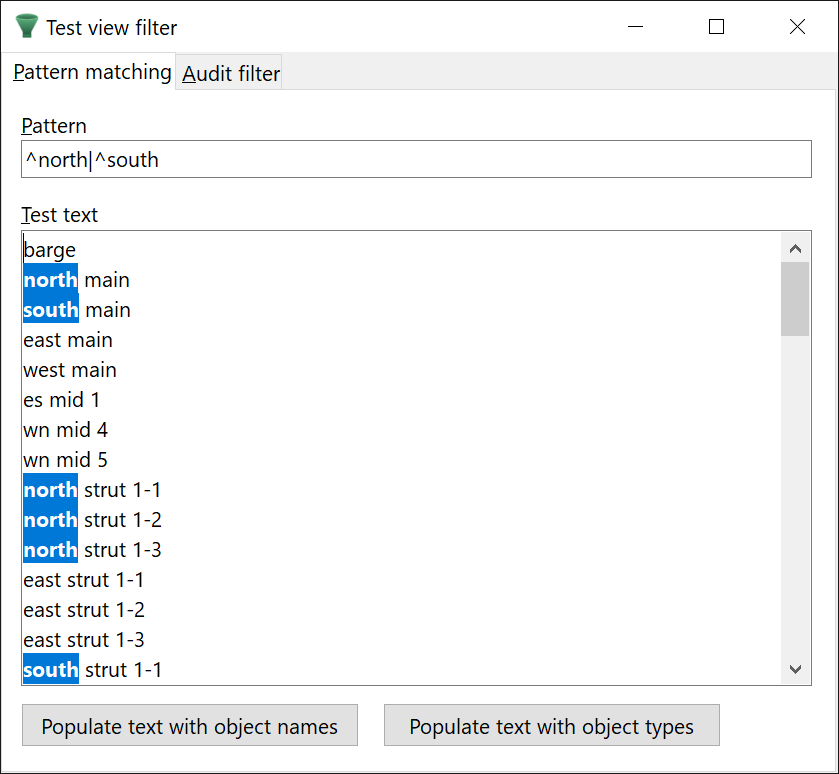
| Figure: | View filter testing: pattern matching |
The pattern matching page allows you to test regular expression patterns interactively. You need to populate the test text field with a range of values, typically these will be either object names, or object types. This text field can be populated automatically with the names of the objects from the current model, or the list of possible type names.
You can then enter a pattern to be tested. Each line in the test text field is tested against the pattern, one by one, and all matches are highlighted.
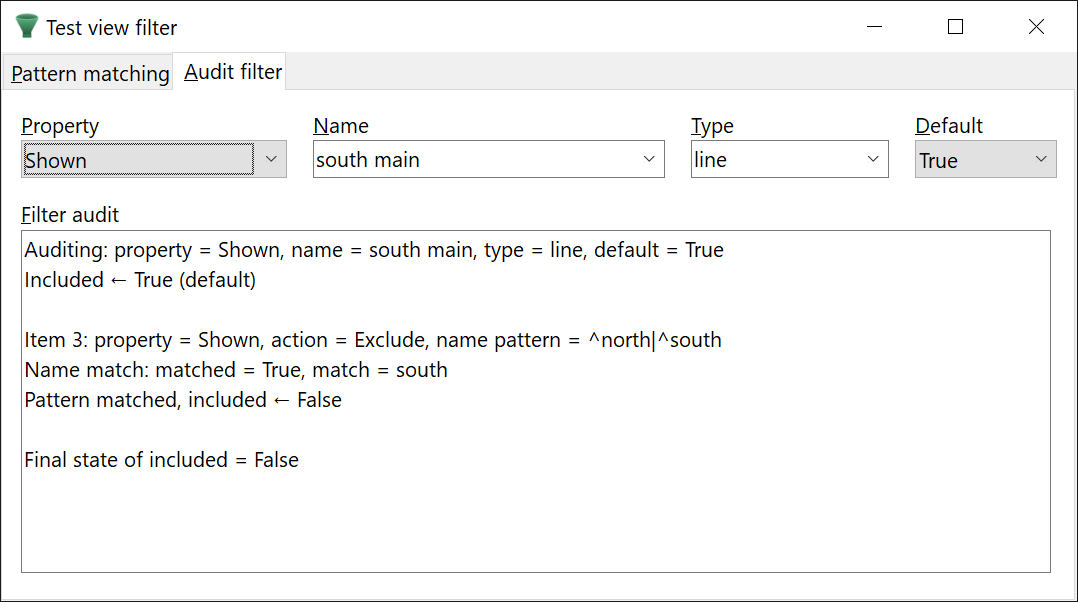
| Figure: | View filter testing: audit filter |
The audit filter page allows you to debug and inspect, step by step, how the filtering algorithm (as described above) is applied to a specific property, object name and object type.
You would typically use this to check that more complex filters are working as you expect. If you find that a specific drawing aspect is not showing when you expect it to show, or vice versa, then you can set the input fields on this form to specify that drawing aspect, the name of the object in question, and its type.
The default value is the initial value of the boolean state flag, as documented above. This allows you to experiment with different default values, and not rely on the current default, as determined by user data or view preferences.
The audit output reports the outcome of each of the steps of the filtering algorithm. The output does not record any filter items that don't have a property matching the property under test.