
|
View filter examples |
|
|
View filter examples |
View filters can have a significant learning curve. There are a lot of options, and the pattern matching language can be intimidating for users who are not familiar with regular expressions. This walk-through of a series of examples is intended to help flatten this learning curve.
We start with the simplest model presented in the examples:
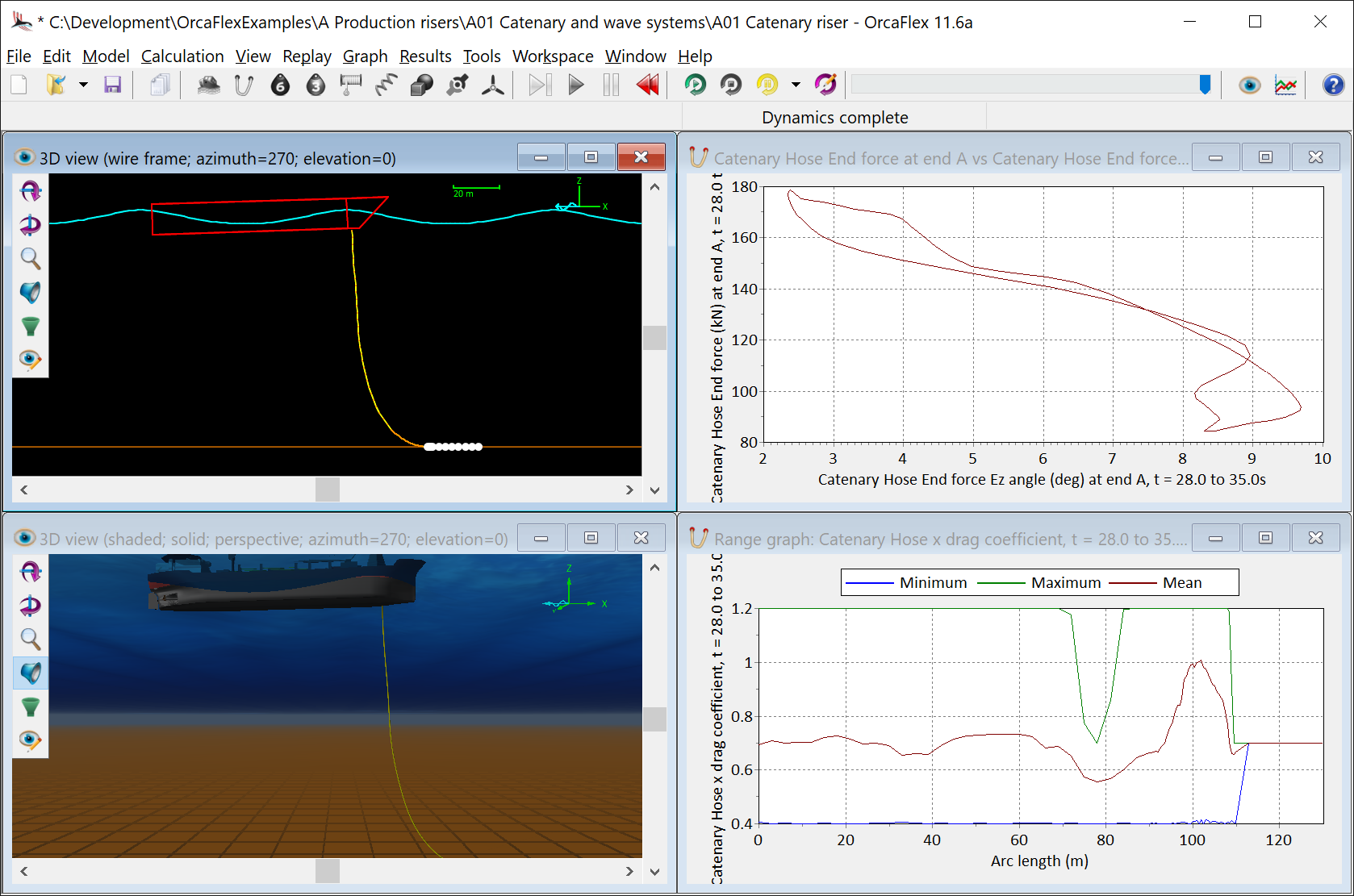
| Figure: | A01 Catenary riser example |
One of the nuances of the filter algorithm is that there can be multiple ways to achieve the same thing. Partly this may be personal choice, based on your mental model for the desired final state, but you should consider how the filter you define will perform as you make changes to your model or similar models in future.
Now suppose that we want to show the local axes of the line ends but not the vessel. In previous versions of OrcaFlex that was not possible. To illustrate the multiple paths to the same outcome, we first show all local axes and then use a filter to remove the axes for the vessel. For convenience, OrcaFlex replicates the View | Axes and labels menu as checkboxes on the view filter form. This allows you to modify these preferences without having to switch to a different part of the user interface, i.e. the view menu, or the preferences form.
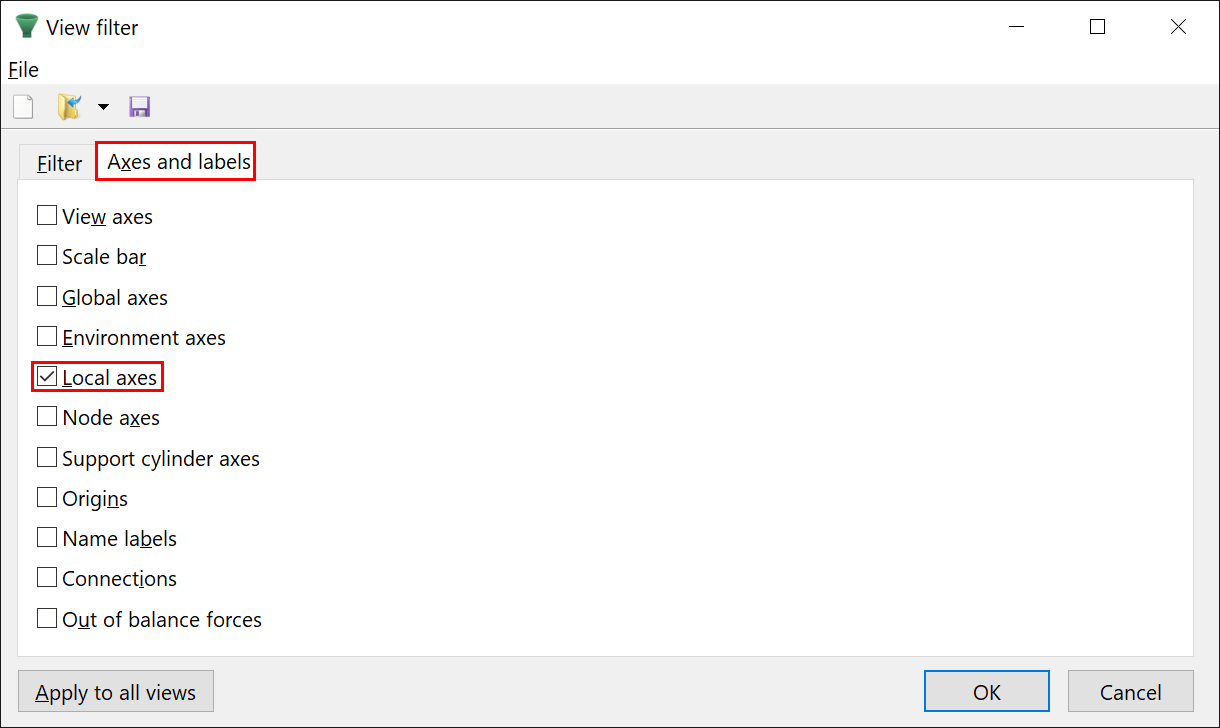
Here we have unchecked all of these preferences, apart from the local axes. The resulting view shows the local axes for all objects, as you would expect:
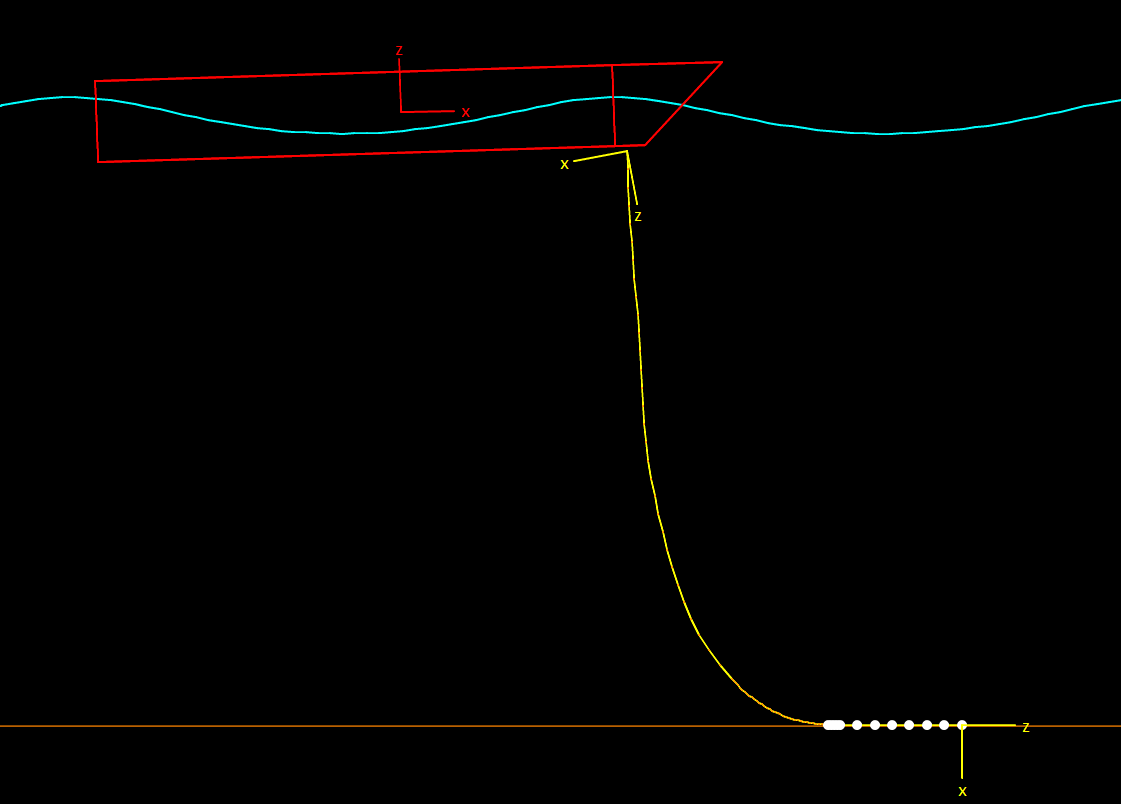
Now we can add a filter to exclude the local axes for the vessel. Once again we are faced with two paths to doing this, as we can either apply this based on the object type or the object name:
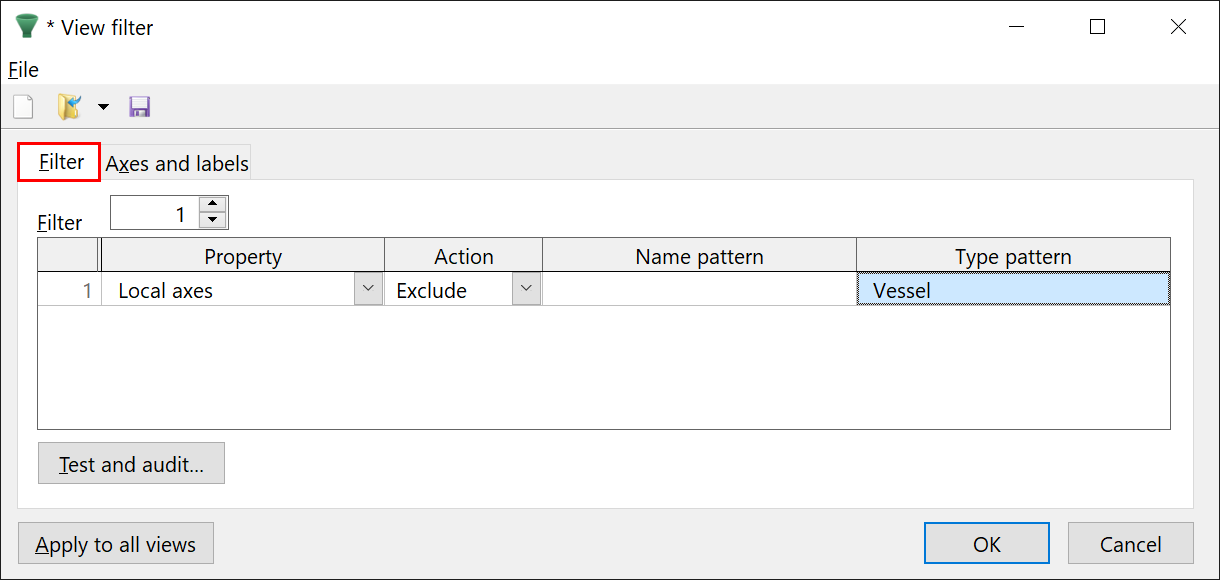
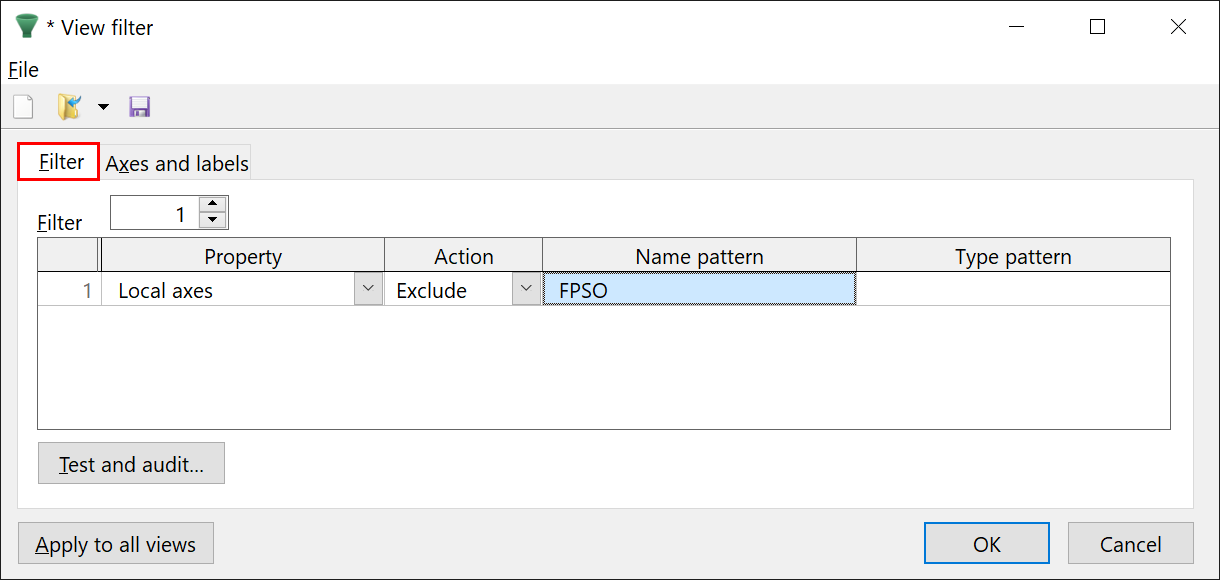
Each of these alternative approaches produces the same result:
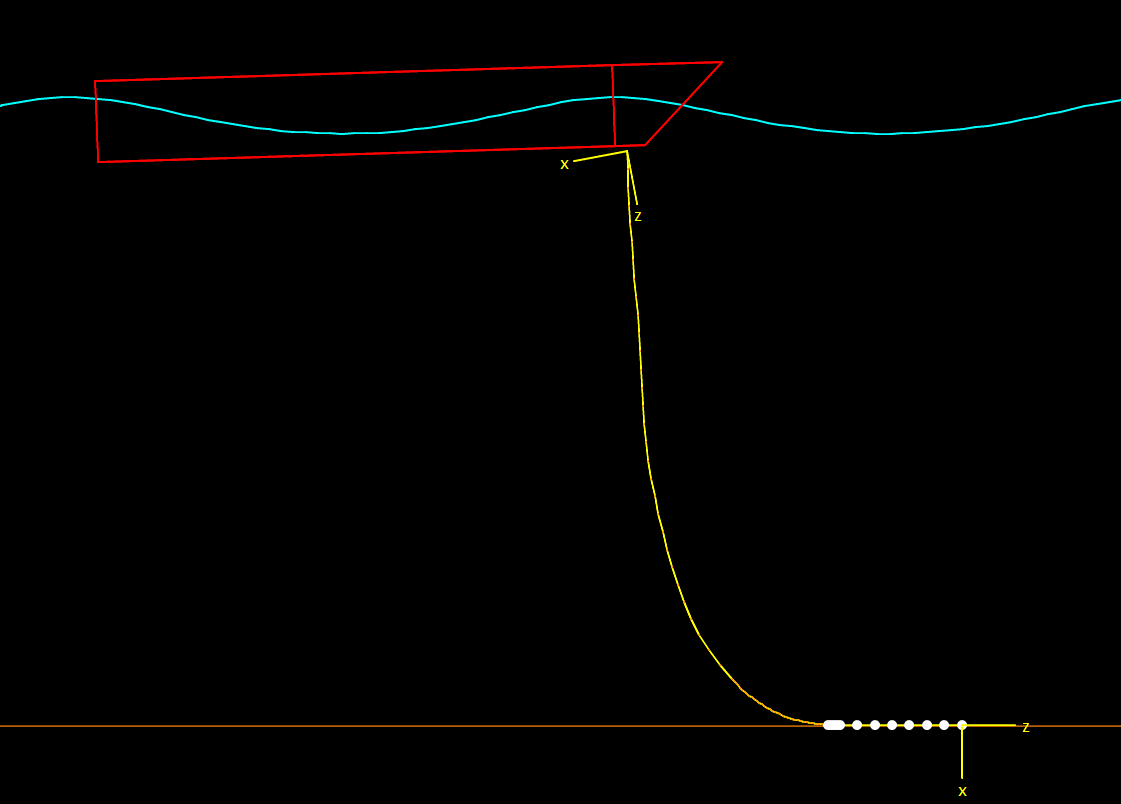
Of course, we could have approached this by hiding all local axes and then using a filter to include them only for the lines:
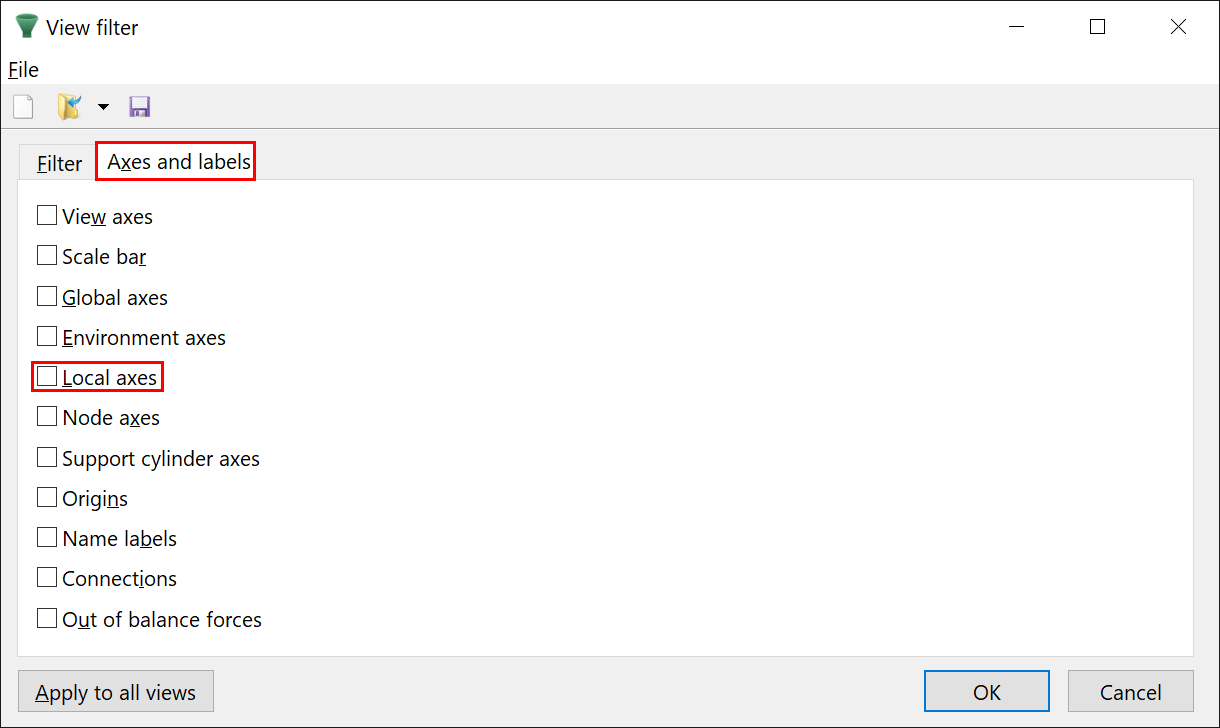
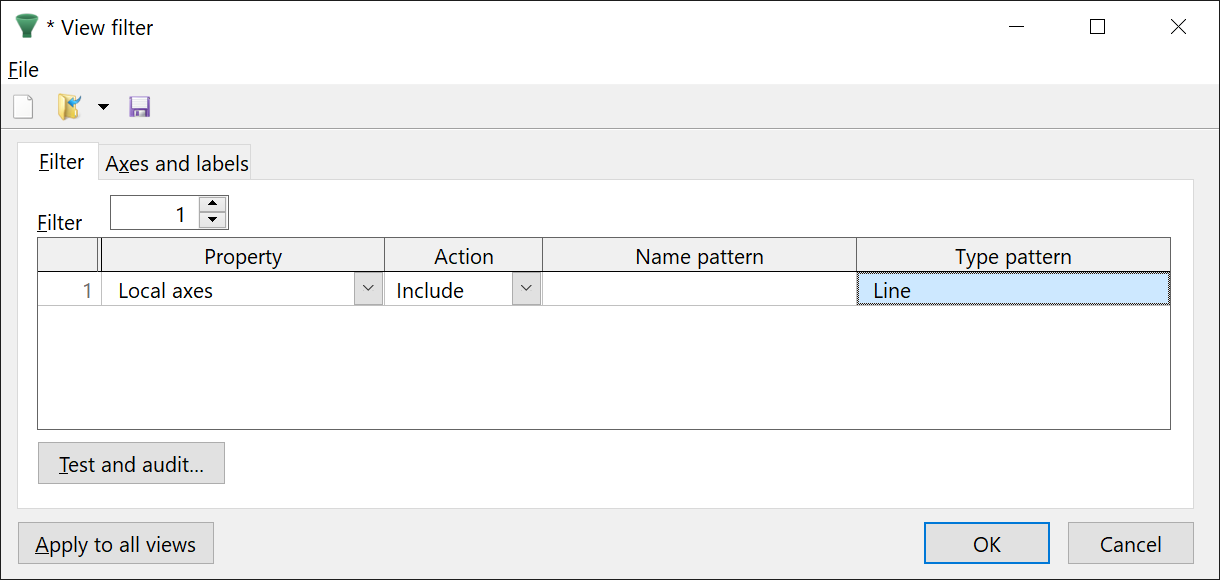
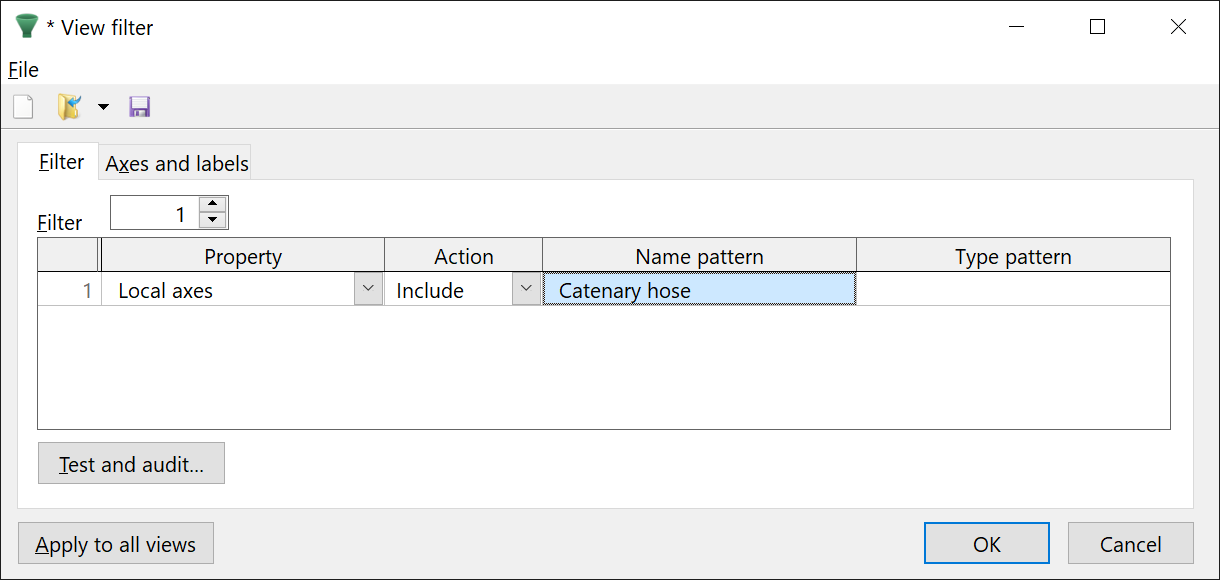
Either of these approaches produces the same result as before.
Having got that gentle introduction out of the way, let's move on to something a little more complex, which can better showcase the benefits of view filters. We will now look at the B06 Running BOP example.
Suppose that we are interested in the rotation of the BOP during lowering. Looking at the local axes during a replay can be a great way to visualise its behaviour. However, when turning on the local axes in a plan wireframe we will struggle to know which axes are of interest.
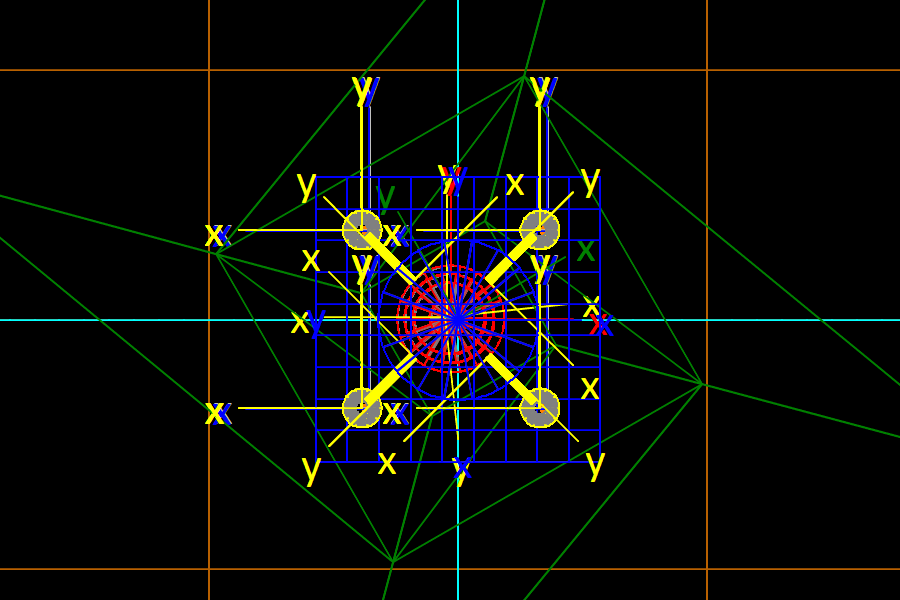
We'll address this by first excluding all local axes, and then including local axes just for the BOP:
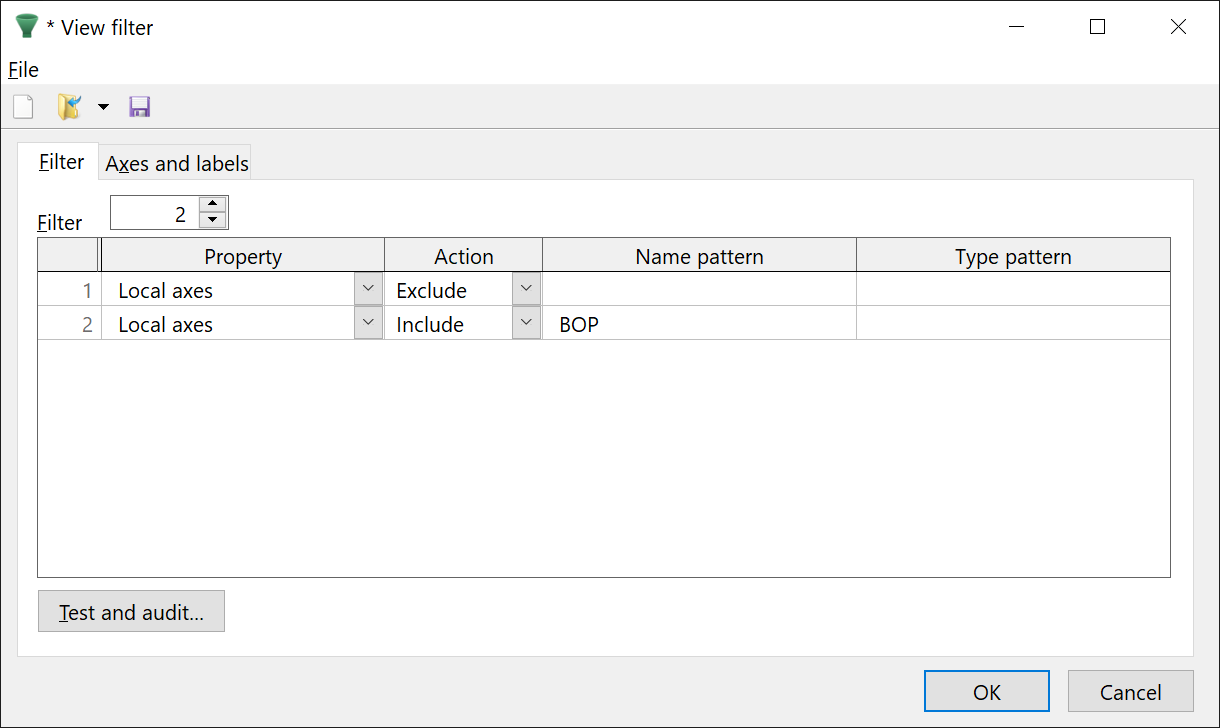
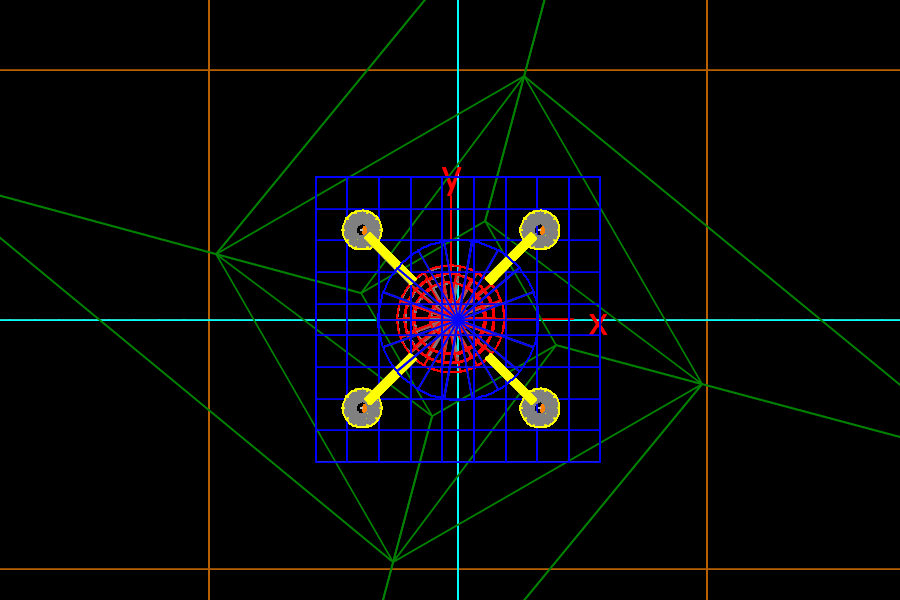
It is worth taking a bit of time to break down this filter, as this is the first time we have had multiple items. Filter items are applied sequentially. So when we said above that we would first exclude all local axes, and then include them for the BOP, the filter represents these sequential steps exactly:
Note that the state of the local axes preference is now irrelevant, because excluding local axes for all objects in item 1 overrides whatever that preference is set to.
You can check this for yourself by toggling that preference and noting that it has no impact on the view. However, we also provide a debugging tool to streamline such testing, called the audit tool.
This is available by clicking the test and audit button on the view filter form. This has pages for testing pattern matching, and auditing the filter. We are going to look at the audit filter page. The audit tool allows you to debug and inspect, step by step, how the filtering algorithm is applied to a specific property and object.
We are interested in the local axes property for the object named BOP. And we are trying to see the impact of using different default values, which for the local axes property means different values of the local axes preference. We can use the audit tool to compare the two paths through the filtering algorithm for the two possible values of this preference, true or false. The user has to set each of the four input fields, and then the audit is reported as text:
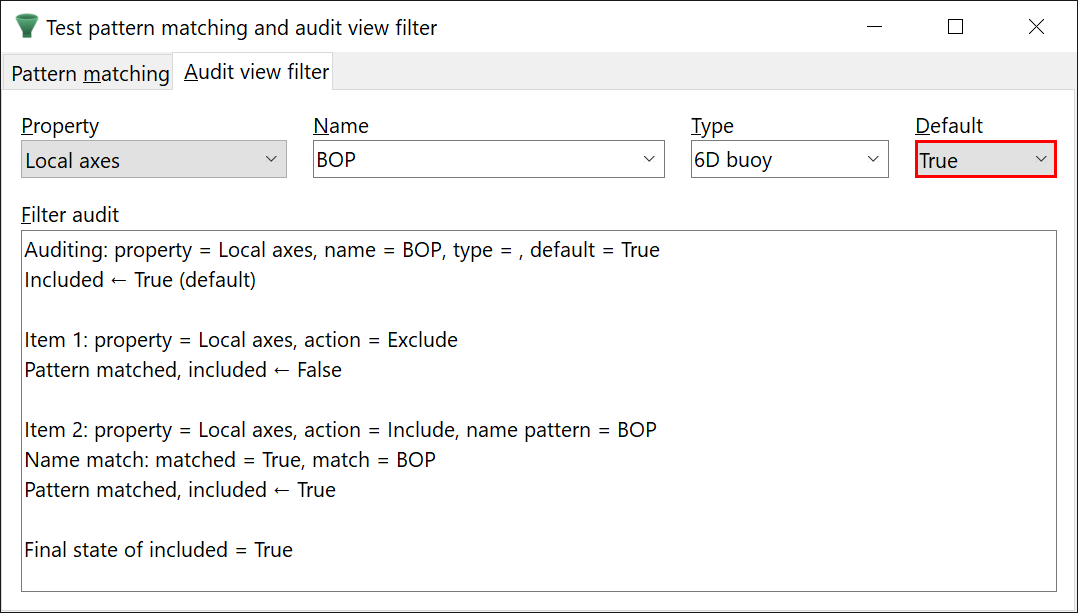
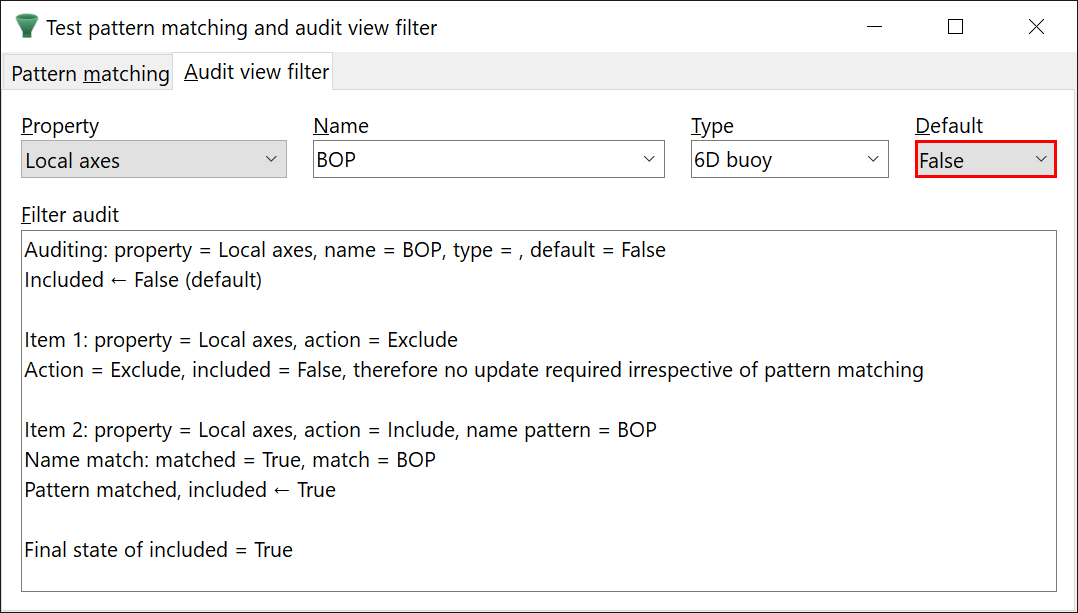
Here we can see the different paths through the filtering algorithm, but both leading to the same outcome, namely included = true.
This is quite a simple demonstration of the auditing tool, but for more complex, layered filters, it is really useful to help understand why a filter is not behaving as you might expect.
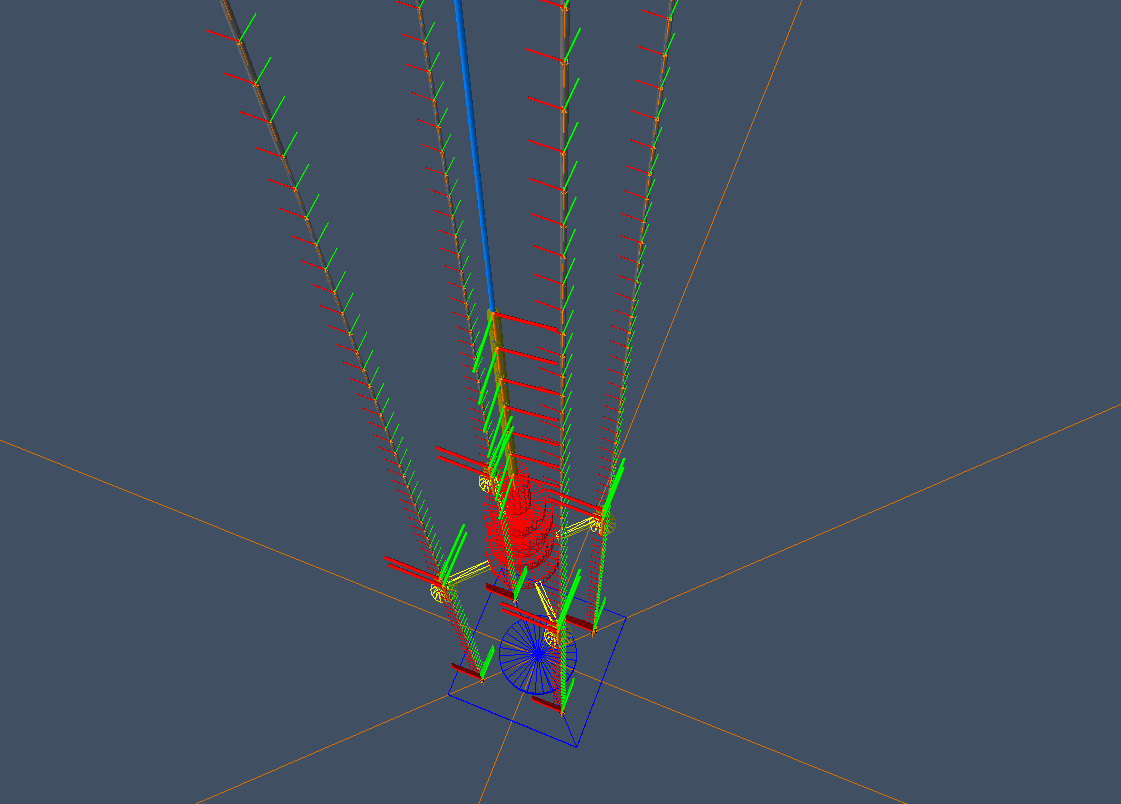
What if we are also interested in the guide line node axes but only the BOP guide lines? Use View | Axes and labels | Node axes (CTRL+ALT+Y) to show them for all lines. Equally, we can set this preference on the axes and labels page of the view filter form, as we have already seen.
The mesh shaded view looks like this:
If we follow the same process as above and disable all node axes globally, and then add a filter for Guide, we don't seem to have solved the problem:
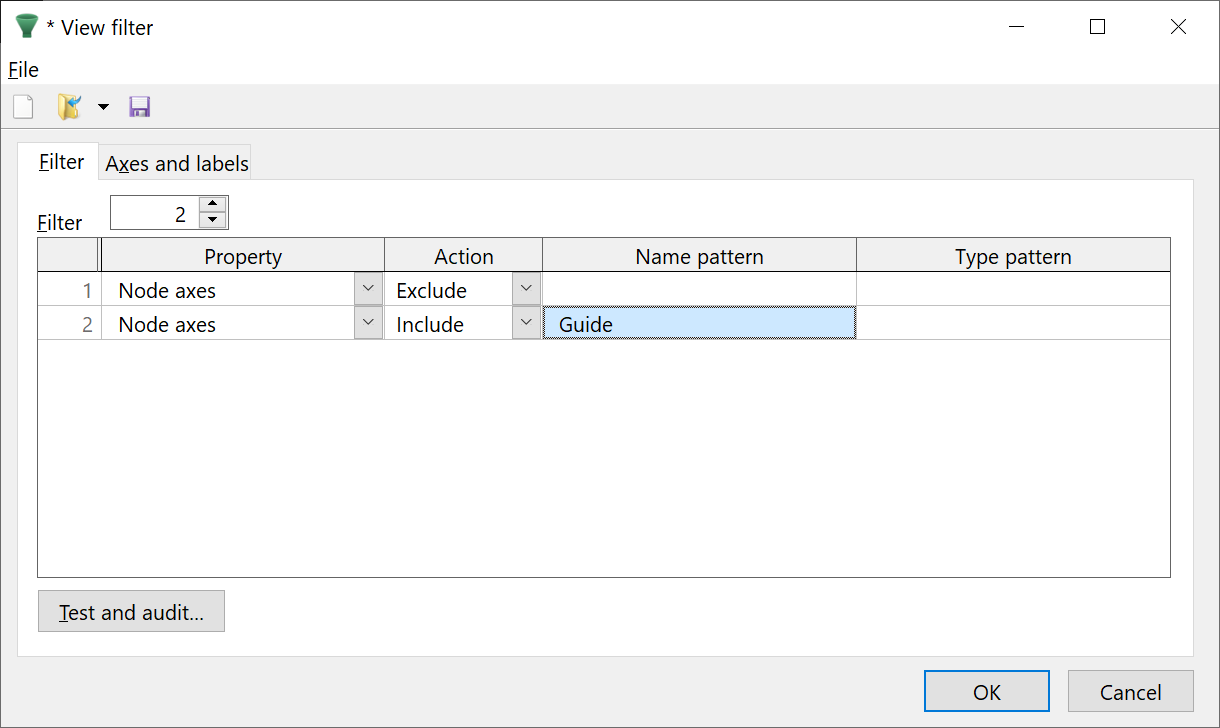
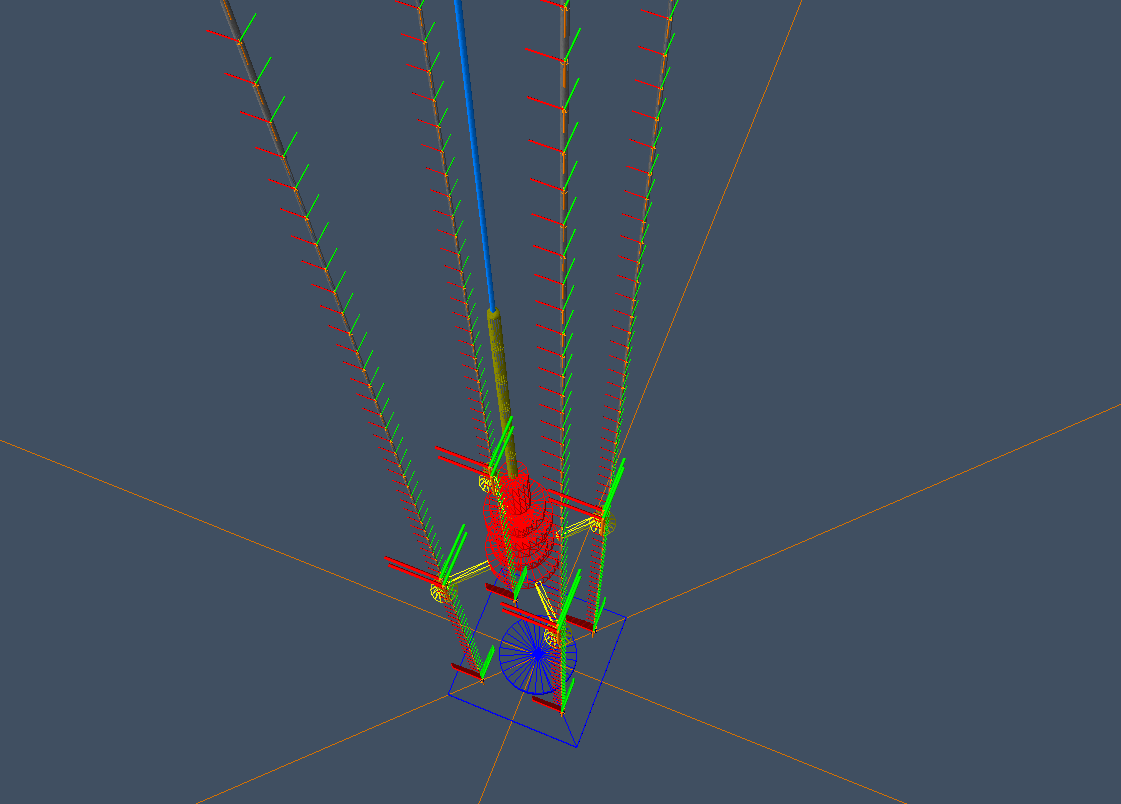
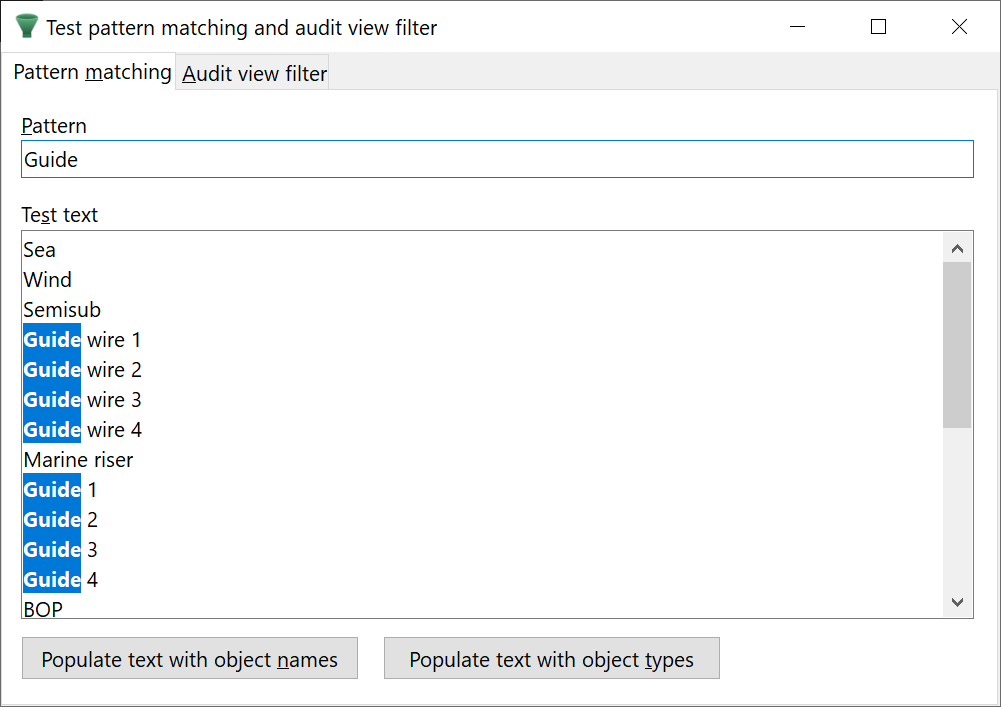
This is because there are extra objects which have Guide in their name, and the filter Guide will match all of them. We can investigate this again with the test view filter form, but this time using the pattern matching page. Here we can use the populate text with object names button to get the list of all object names in this model added to the test text. Note that we're also matching the guide wire lines that also start with Guide.
How do we only include the BOP guides named "Guide 1", "Guide 2", etc.? A naïve approach is to just enumerate all the object names:
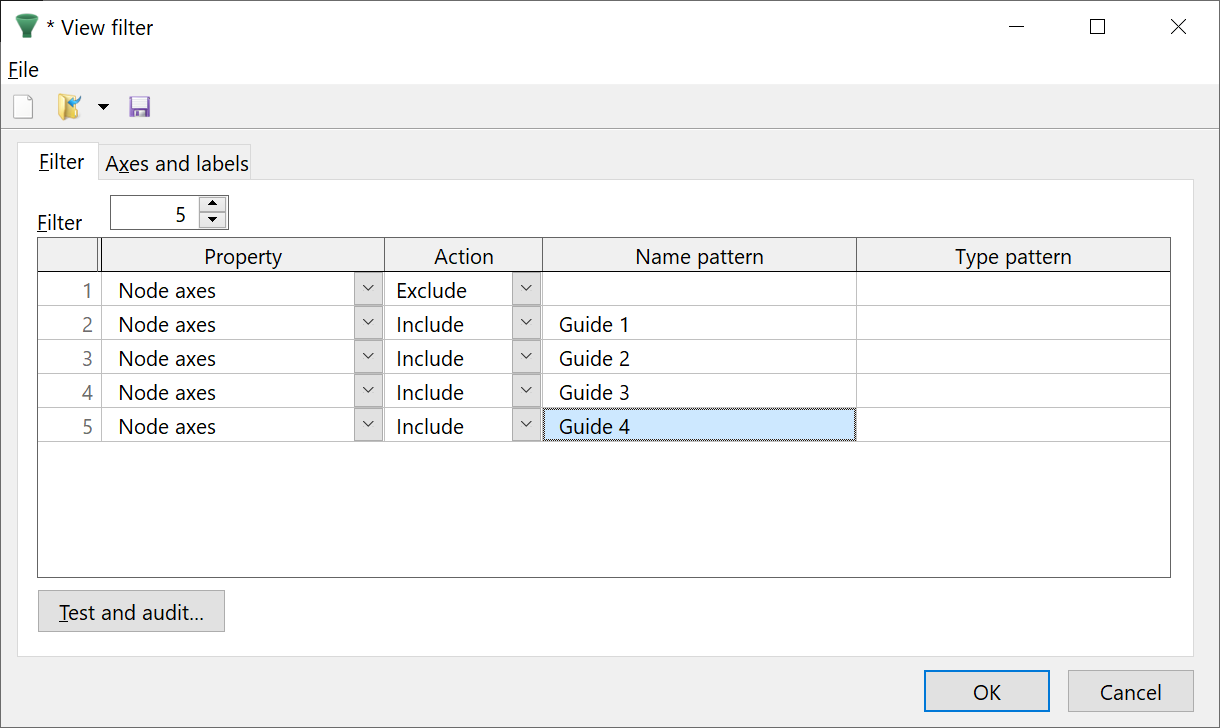
This will have the desired effect, but it is tedious to list all of the line names here. Furthermore, as we develop our model, it's going to take time to update each of these filter items. And what if there are a lot more than 4 objects that we wish to match? This is where pattern matching using regular expressions can help us.
A regular expression is a text pattern used to match, search or extract specific parts of text. Had we developed this feature ten years ago, you'd have had to read a textbook or follow an online course to be able to create regular expressions from scratch. If your required pattern was a common one then a search engine may link to a forum post that would point you in the right direction. Nowadays, AI chatbots can produce regular expressions from a good description with high accuracy. You will benefit from educating yourself about regular expressions even when using an AI chatbot, as this will help you frame your prompt correctly.
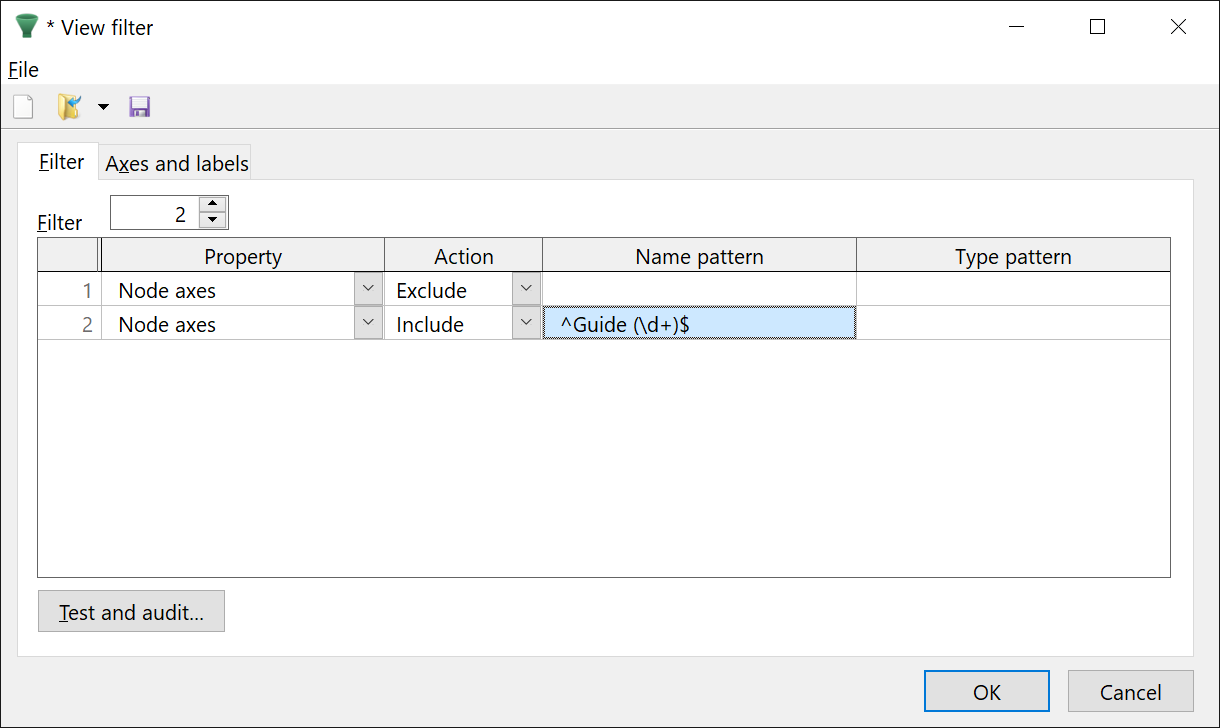
^Guide (\d+)$ is a regular expression that matches an entire string consisting of the literal text "Guide " (including one space) followed immediately by one or more digits (a positive integer), with no additional characters before or after.
^ … $ anchors the pattern to the entire object name(\d+) matches and captures one or more digits (the integer)Guide enforces the required formatNow the filter is robust to future model changes, and has the desired result:
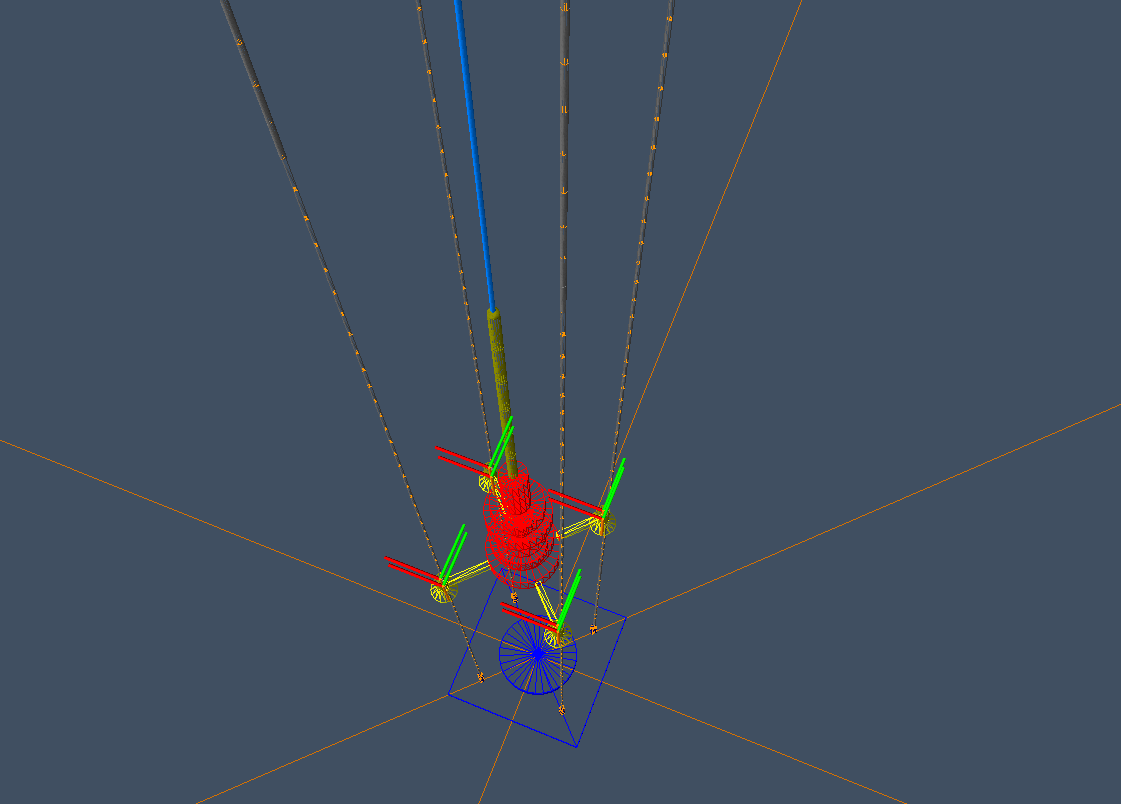
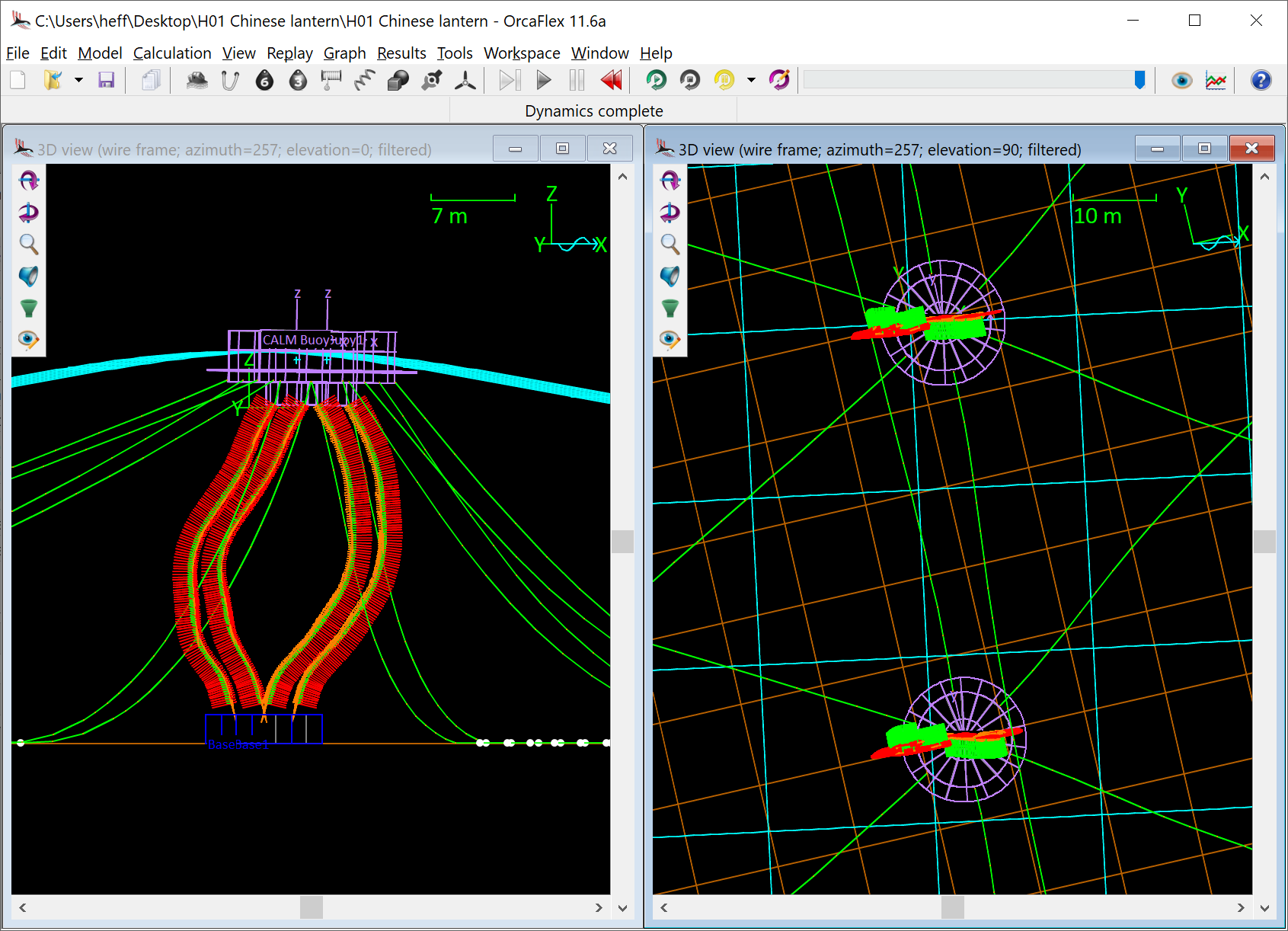
Suppose we are preparing a report to describe our approach to modelling CALM buoys. This model compares risers with and without torsion, so we will want to include node axes again. We also want to make the individual elements obvious to the reader without additional annotation, so we enable name labels. Further, rotations of the CALM buoys are interesting, so we're going to enable the local axis drawing. We'll produce some snapshots in elevation and plan views, which with all the global view settings applied looks like this:
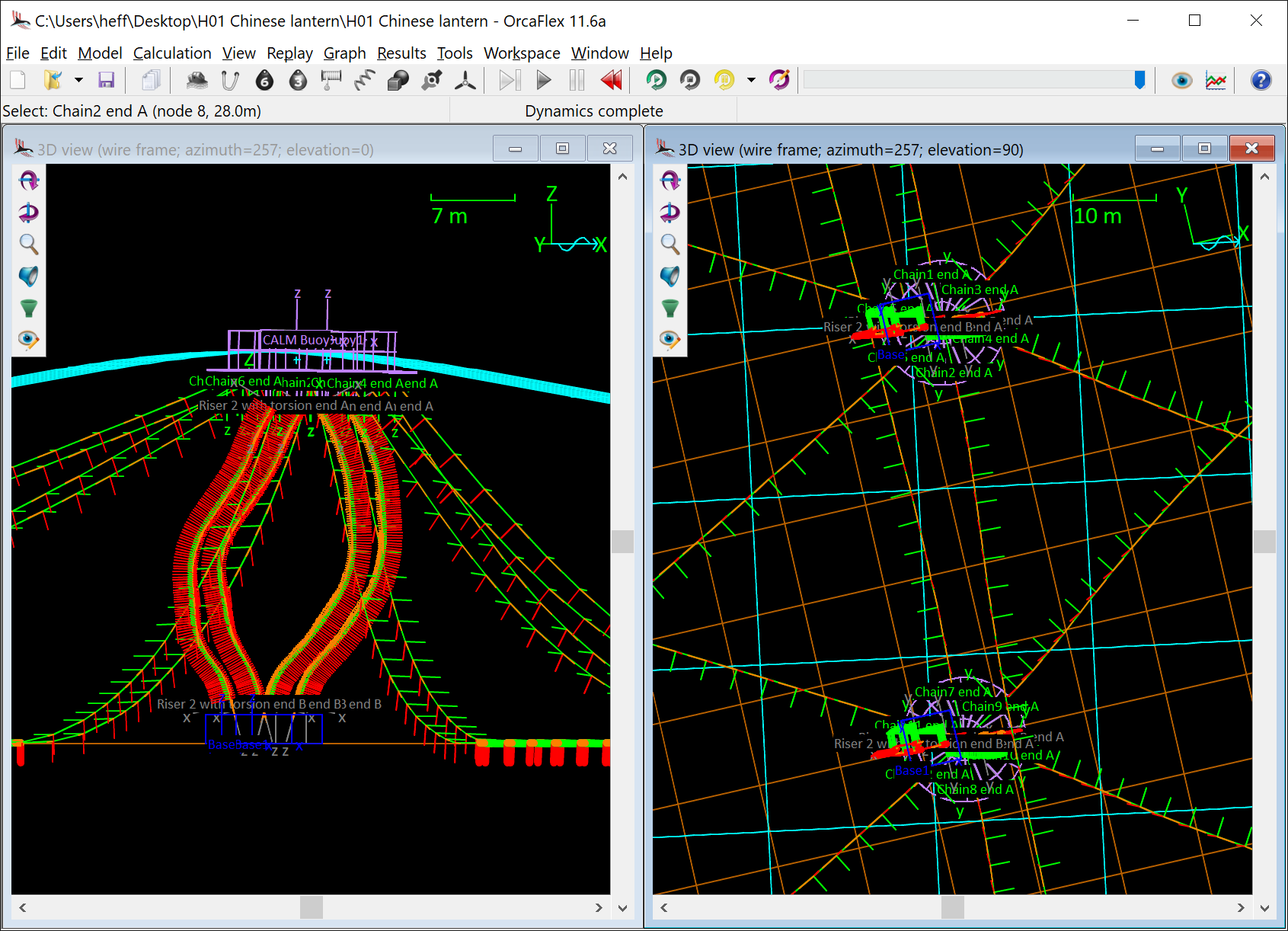
| Figure: | H01 Chinese lantern example |
Dropping the above image into a report probably doesn't win us any style points or make it very easy for the reader to understand what they're looking at. Let's try to construct some view filters that make things clearer.
| Objects | Shown | Node axes | Local axes | Name labels |
|---|---|---|---|---|
| Risers | ✅ | ✅ | ❌ | ❌ |
| Mooring lines | ✅ | ❌ | ❌ | Use global |
| CALM buoys | ✅ | N/A | ✅ | ✅ |
| Bases | ✅ | N/A | ❌ | ✅ |
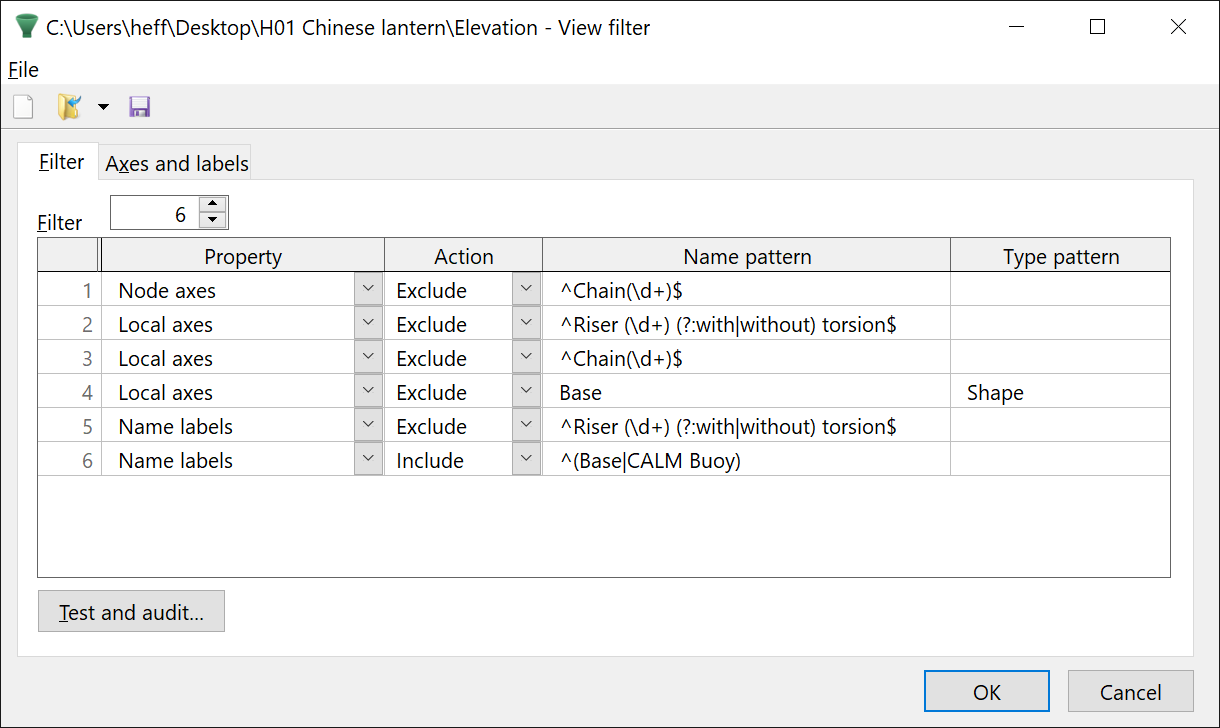
| Objects | Shown | Node axes | Local axes | Name labels |
|---|---|---|---|---|
| Risers | ✅ | ✅ | ❌ | ❌ |
| Mooring lines | ✅ | ❌ | ❌ | Use global |
| CALM buoys | ✅ | N/A | ✅ | ✅ |
| Bases | ❌ |
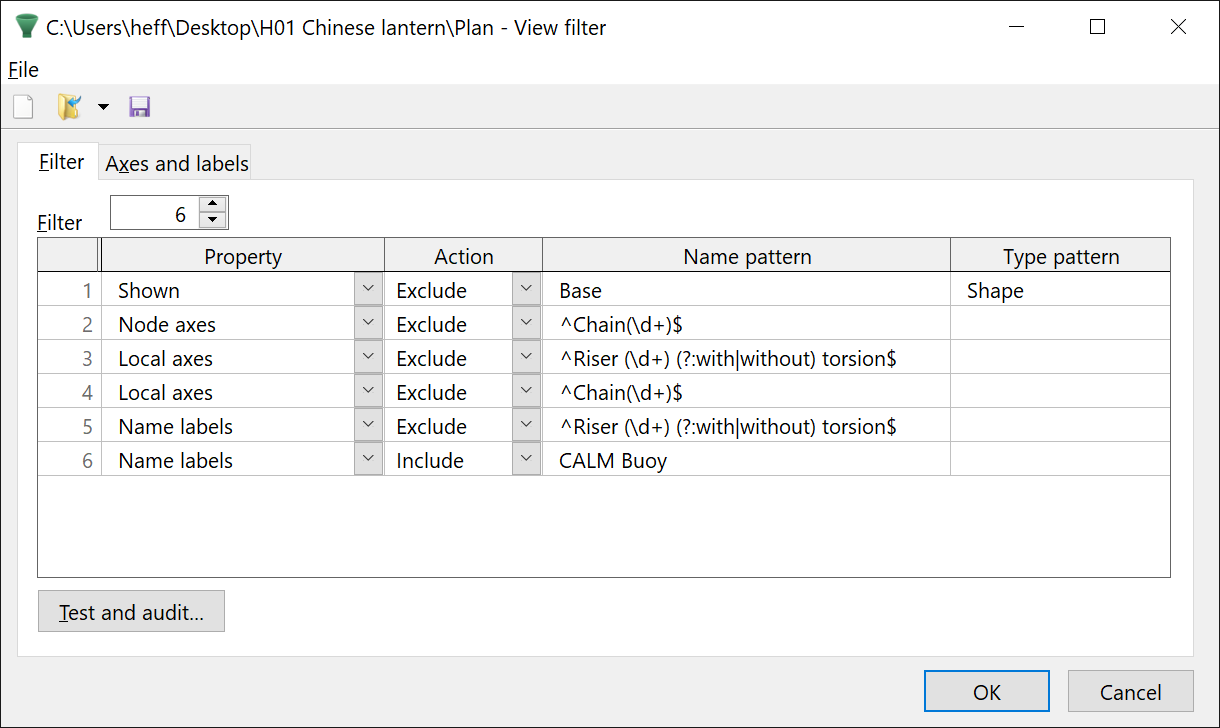
In previous versions of OrcaFlex, all of the options we are working with here would apply to all views. However, with filters we can now set these on a per-view basis, so the bases are hidden in plan but not elevation. The final result is clearer:
Note that this screenshot was captured with the drawing labels disabled globally.
The view filter files, and an appropriate workspace file, can be downloaded so that you can experiment further:
You may have noticed that for some filters we've specified both name and type patterns. This is another future-proofing tactic, so that if we add objects of different types with the same starting letters they are unmatched.
The complex pattern to match risers:
^Riser (\d+) (?:with|without) torsion$
merits some explanation:
^ – must start at the beginning of the lineRiser – literal word "Riser"(\d+) – a space, then one or more digits (captured as a group), then a space(?:with|without) – either the word "with" or "without" torsion – a space, then the literal word "torsion"$ – must end at the end of the lineExample candidate matches:
Riser 5 with torsion (matches)Riser 12 without torsion (matches)Riser with torsion (does not match because no digits found)This pattern above includes both capturing and non-capturing groups:
(\d+) is a capturing group, which stores the matched digits so they can be referenced later in code (e.g. match.group(1) in Python).(?:with|without) is a non-capturing group, which groups alternatives without storing the match.Capturing groups have no effect on the OrcaFlex view filter algorithm – they are only relevant if you plan to use the matched text programmatically.
Best practice: When you do not need to reuse the matched value, use a non-capturing group, (?:...), for clarity and efficiency. For example, the equivalent best-practice version of this pattern is:
^Riser (?:\d+) (?:with|without) torsion$
This behaves identically in OrcaFlex but avoids creating unused capturing groups.
We have included this discussion because you may encounter capturing groups in regular expressions, especially if they are generated by chatbots or other tools, so it's useful to be aware of them. Although we've described best practice as using non-capturing groups, it's perfectly fine to be more relaxed and just use capturing groups. This has the benefit of making the regular expressions easier to read as a human. And for OrcaFlex usage with view filters, there is no discernible performance impact. So, with all that in mind, you could equally have written the pattern using capturing groups like so:
^Riser (\d+) (with|without) torsion$