
|
Offline license activation |
|
|
Offline license activation |
It is possible to deploy FlexNet licenses for Orcina software on a host machine which is deliberately isolated or restricted from internet access.
| Note: | The screenshots here show the server edition of OrcaLicense, but offline activation for local access licenses is also possible, and the same procedure is followed. |
To perform offline activation, first open OrcaLicense in offline mode, using the start menu entry illustrated below:
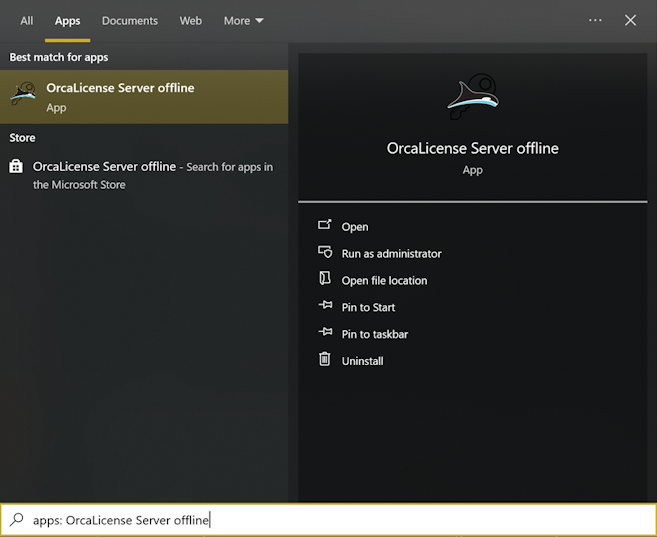
If the start menu entry is not present for you, it is also possible to open OrcaLicense in offline mode by supplying a -offline command line argument to program start up:
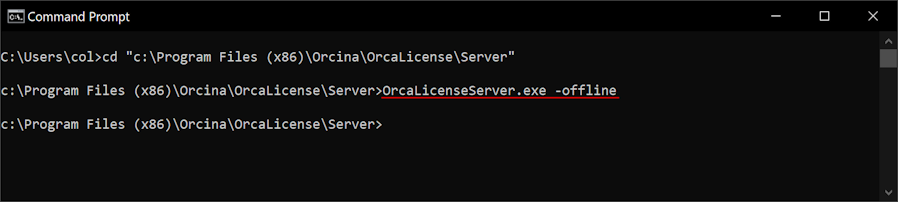
Note that we move the working directory of this command prompt to the OrcaLicense installation folder, for direct access to the OrcaLicense executable.
Once OrcaLicense is opened in offline mode, licenses are activated from the  button on the toolbar or the INSERT key shortcut
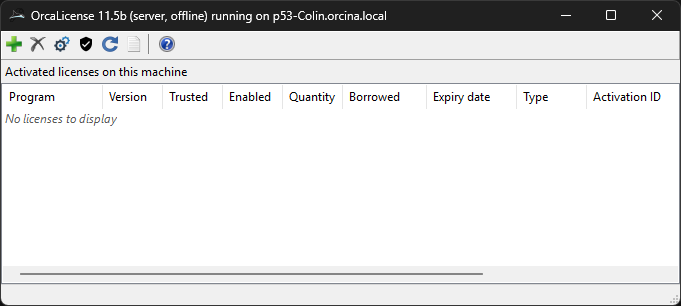
This will open the standard activate licenses dialog and allow you to enter your activation ID. If you have floating licenses, which you are activating on a server, you can choose here how many licenses to activate: the default is '~', meaning that OrcaLicense should activate all available licenses. If you have a local license, you can only activate one license here – there would be no point in having more than one for the same program.
When you press OK, OrcaLicense will generate a license activation request file. The request file is an XML text file, and you will be prompted for a save location for this.
| Note: | We recommend that the full path of this saved file does not contain special characters, such as letters with accents or non-roman languages. |
After saving, please send that XML text file as an email attachment to us here at Orcina. We will process that text file by submission to the FlexNet online service. We receive a corresponding response file in return, and we will email that response file to you.
The second part of the procedure is to process the response. The third button of OrcaLicense in offline mode  will prompt you to select the saved response file. Upon processing, your activated licenses should then be in-place, and will appear in the OrcaLicense program window.
Offline license deactivation using the  button follows the same procedure – a request and response file pair are created. The license is removed from your host machine upon processing of the response file.
Verification of the response processing is required as a final step of the license deactivation process. This verification is not required for license activation.
After processing a licence deactivation response, we ask clients to use the  button to generate one final XML text file, with default save name "verification.xml". Please send this XML text file as an email attachment to Orcina. We can use the file content to confirm license deactivation. There is no corresponding response file for this item.
| Note: | Verifying the processing of a deactivation response file is the only way for Orcina to confirm that deactivation is fully completed. We therefore require that clients performing offline deactivation supply the file as described here. |
If you are unable to activate your licenses, and/or you receive an error message you need help with, please see the troubleshooting topic in the first instance. If this doesn't help you to resolve your problem, please contact Orcina for support, with a copy of the message and any diagnostic information available.