
|
Native external function examples: Introduction |
|
|
Native external function examples: Introduction |
Writing external functions can be a complex task with a steep learning curve. We provide a number of examples of external functions which are intended to make the learning process more accessible:
Each example is contained in a separate directory. Initially you should start with the wing angle function examples. These start with the simplest possible example of an external function, and progressively introduce more functionality. The remaining examples cover more complex aspects of external function coding.
The ZIP file contains the code for all of the examples. Each individual example, or collection of related examples, is described in one of the following topics in this section:
Your OrcaFlex installation provides source code files that define the C/C++ API and source files that support you in writing your own external functions. We have used these files in our external function examples - all of the topic folders have these in common.
The following source files are used in each of the external function examples:
OrcFxAPI.h
OrcFxAPI_wrapper.cpp and OrcFxAPI_wrapper.hppOrcFxAPIExplicitLink.c and OrcFxAPIExplicitLink.hRegisterCapabilities.cpp
Utils.cpp and Utils.hppThe use of OrcFxAPI_wrapper source files in your own functions is optional. It is possible to directly access functions in OrcFxAPI.h instead, but the wrapper is intended to allow you to write more readable code, and we recommend its use.
Each example is provided with a pre-built DLL containing the compiled external function. When you come to write your own external functions you will need to compile them, and we now describe how to do that. You can use this as a template for how to build your own external function code.
We have developed the examples using C++ and the CMake build system. Compiling and linking C++ code in a structured and maintainable manner is a notoriously complex task. Using CMake shields us from a lot of that complexity, and makes it easy to build the code using a variety of tool chains. We have supplied CMake projects designed for use with either Visual Studio or MinGW/g++ on msys2. You could use these CMake projects as a good starting point to use with other tools if necessary.
We will describe the build process using the WingAngleFromTime example, but the same principles will apply for all of the examples.
| Note: | We have developed and tested the CMake projects using Visual Studio 2022. |
There are two ways to work with and build CMake based projects using Visual Studio: from the GUI or the command line.
From the GUI you need to use the open folder action to select and then open the folder containing the CMakeLists.txt. For the WingAngleFromTime example, this folder is named WingAngleFromTime and the other examples follow the same pattern.
Once you open the folder, Visual Studio will execute the appropriate CMake commands to prepare the project for compilation in your environment. The Visual Studio documentation contains more detail on the Visual Studio integration with CMake.
You can also build the examples from the command line with the same tool chain. First of all you need to open a developer command prompt. Change to the directory of the example which you wish to compile and issue the following commands:
cmake -B .vs -A x64
cmake --build .vs --config Release
The output looks like this:
C:\>cd NativeExternalFunctionExamples\WingAngleFromTime

C:\NativeExternalFunctionExamples\WingAngleFromTime>cmake -B .vs -A x64
-- Building for: Visual Studio 17 2022
-- Selecting Windows SDK version 10.0.26100.0 to target Windows 10.0.19045.
-- The C compiler identification is MSVC 19.44.35217.0
-- The CXX compiler identification is MSVC 19.44.35217.0
-- Detecting C compiler ABI info
-- Detecting C compiler ABI info - done
-- Check for working C compiler: C:/Program Files/Microsoft Visual Studio/2022/Professional/VC/Tools/MSVC/14.44.35207/bin/Hostx64/x64/cl.exe - skipped
-- Detecting C compile features
-- Detecting C compile features - done
-- Detecting CXX compiler ABI info
-- Detecting CXX compiler ABI info - done
-- Check for working CXX compiler: C:/Program Files/Microsoft Visual Studio/2022/Professional/VC/Tools/MSVC/14.44.35207/bin/Hostx64/x64/cl.exe - skipped
-- Detecting CXX compile features
-- Detecting CXX compile features - done
-- MSVC detected
-- Configuring done (10.7s)
-- Generating done (0.0s)
-- Build files have been written to: C:/NativeExternalFunctionExamples/WingAngleFromTime/.vs

C:\NativeExternalFunctionExamples\WingAngleFromTime>cmake --build .vs --config Release
MSBuild version 17.14.23+b0019275e for .NET Framework

  1>Checking Build System
  Building Custom Rule C:/NativeExternalFunctionExamples/WingAngleFromTime/CMakeLists.txt
  OrcFxAPI_wrapper.cpp
  Utils.cpp
  WingAngleFromTime.cpp
  Generating Code...
  OrcFxAPIExplicitLink.c
  RegisterCapabilities.c
  Generating Code...
     Creating library C:/NativeExternalFunctionExamples/WingAngleFromTime/.vs/Release/WingAngleFromTime.lib and object C:/NativeExternalFunctionExamples/WingAngleFromTime/.vs/Release/WingAngleFromTime.exp
  WingAngleFromTime.vcxproj -> C:\NativeExternalFunctionExamples\WingAngleFromTime\.vs\Release\WingAngleFromTime.dll
  Building Custom Rule C:/NativeExternalFunctionExamples/WingAngleFromTime/CMakeLists.txt
The GNU Compiler Collection (GCC) is an open source project containing a number of compilers for a range of languages. There are many different ways to use GCC on Windows, but we have found the msys2 environment to be a very simple and effective way to do this. We will therefore use msys2 to demonstrate compilation with GCC.
| Note: | MinGW is a Windows port of GCC which is supported under msys2. Within the broader GCC collection of compilers, the C++ compiler is named g++. So we will be compiling with MinGW/g++ on msys2. |
You can download the msys2 installer from the front page of their website: https://www.msys2.org/.
Once you have installed the basic msys2 environment, we next need to install the necessary packages to build our code with MinGW/g++. The msys2 environment provides a number of different command prompts, each one targeted for a specific activity. The prompts that we will use are MSYS and MinGW 64-bit. These are found in your start menu:
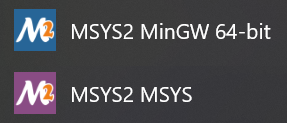
When performing package installation and maintenance, we use the MSYS2 prompt. When compiling we use the MinGW prompt with the appropriate bitness.
| Note: | Clipboard shortcuts in MSYS2 prompts are non-standard. You cannot use CTRL+C and CTRL+V. Instead you must use CTRL+INSERT and SHIFT+INSERT to copy and paste, respectively. |
To install the packages we need, open an MSYS2 prompt and issue the following command:
pacman -Syu
This updates the system and packages, which is recommended before adding new packages.
To install the necessary packages for our needs, issue this command:
pacman -S --needed base-devel mingw-w64-x86_64-toolchain mingw-w64-x86_64-cmake mingw-w64-x86_64-ninja
Now that MSYS2 and MinGW are installed, we can build the code. Open a MinGW 64-bit command prompt. Change to the directory of the example which you wish to compile and issue the following commands:
cmake -G Ninja -DCMAKE_BUILD_TYPE=Release -B .mingw64
cmake --build .mingw64
The output looks like this:
user@machine MINGW64 ~
$ cd /c/NativeExternalFunctionExamples/WingAngleFromTime/

user@machine MINGW64 /c/NativeExternalFunctionExamples/WingAngleFromTime
$ cmake -G Ninja -DCMAKE_BUILD_TYPE=Release -B .mingw64
-- The C compiler identification is GNU 14.2.0
-- The CXX compiler identification is GNU 14.2.0
-- Detecting C compiler ABI info
-- Detecting C compiler ABI info - done
-- Check for working C compiler: C:/Users/heff/msys64/mingw64/bin/cc.exe - skipped
-- Detecting C compile features
-- Detecting C compile features - done
-- Detecting CXX compiler ABI info
-- Detecting CXX compiler ABI info - done
-- Check for working CXX compiler: C:/Users/heff/msys64/mingw64/bin/c++.exe - skipped
-- Detecting CXX compile features
-- Detecting CXX compile features - done
-- MSYS2 environment: MINGW64
-- Configuring done (4.1s)
-- Generating done (0.0s)
-- Build files have been written to: C:/NativeExternalFunctionExamples/WingAngleFromTime/.mingw64

user@machine MINGW64 /c/NativeExternalFunctionExamples/WingAngleFromTime
$ cmake --build .mingw64
[6/6] Linking CXX shared library WingAngleFromTime.dll
Should you ever need to compile for 32-bit executables you would need to install the corresponding 32-bit packages:
pacman -S --needed base-devel mingw-w64-i686-toolchain mingw-w64-i686-cmake mingw-w64-i686-ninja
Then to compile for 32-bit targets you open a MinGW 32-bit command prompt. Change to the directory of the example which you wish to compile and issue the following commands:
cmake -G Ninja -DCMAKE_BUILD_TYPE=Release -B .mingw32
cmake --build .mingw32
| Note: | Modern MSYS2 installations do not by default create a shortcut for the MinGW 32-bit command prompt. You can create one yourself by making a shortcut to C:\msys64\mingw32.exe, where C:\msys64\ is the default installation location for MSYS2. |